
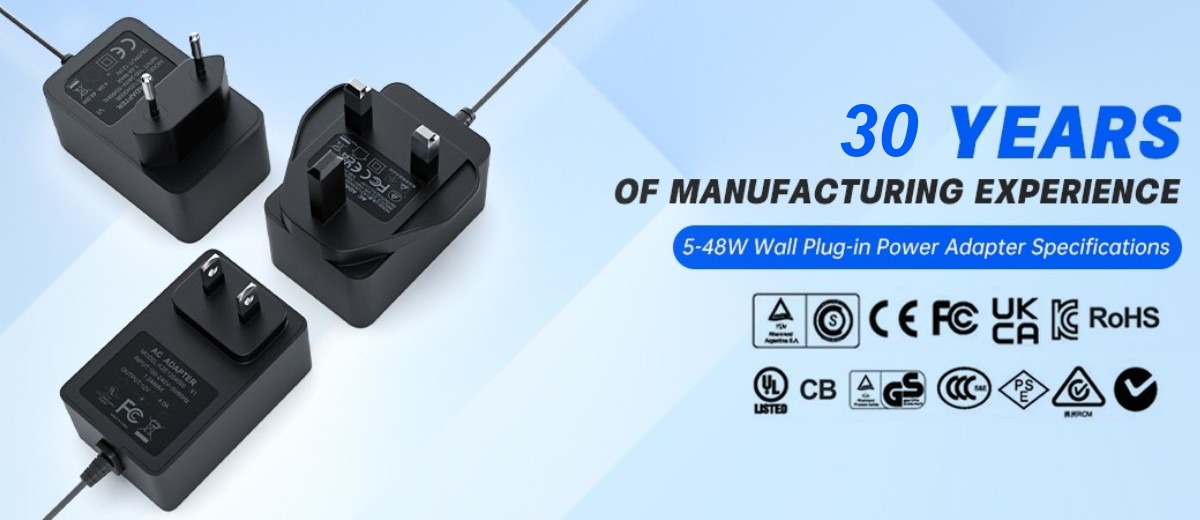
A power adapter is one of the most overlooked yet essential accessories for electronic devices, including laptops, monitors, LED lights, security cameras, speakers, and all kinds of smart home gadgets. When your device fails to turn on, keeps restarting, or loses power intermittently, most users assume the adapter is broken and rush to purchase a replacement.
In fact, more than 80% of common power adapter problems are not caused by product quality defects. Loose connections, improper usage, poor heat dissipation, parameter mismatches, or environmental interference can lead to exactly the same faults.
This comprehensive and user-friendly troubleshooting guide covers all typical power adapter failures, step-by-step solutions, and safety guidelines. Tailored for ordinary individual users, it helps you accurately locate fault causes, avoid unnecessary replacement costs, and restore normal device operation safely.
Basic Pre-Checks: Rule Out Simple Common Faults First
Before advanced troubleshooting, complete the following quick checks first. Most minor power supply issues can be resolved within two minutes.
1. Check Wall Outlet Power Supply
Dead or loose wall outlets are the leading cause of device power failure. Plug a fully functional device such as a phone charger or desk lamp into the same socket to verify stable power output. Power strips with aging internal contacts often cause intermittent power cuts. It is recommended to plug the adapter directly into a standard wall socket for testing.
2. Inspect AC Power Cord and Plug Condition
Carefully check the input power cord for damage, including cracked insulation, exposed internal wires, bent pins, burn marks, or loose connectors. Frequent bending, pulling, or squeezing can break internal copper wires even if the outer sheath looks intact. Replace damaged cords immediately to avoid short circuits and electric shock hazards.
3. Re-seat the DC Output Connector Firmly
The round DC plug connecting your device is the most failure-prone part of the entire power system. Incomplete insertion, loose contact, or dusty and oxidized metal contacts often result in no power or intermittent power cuts. Unplug and firmly reinsert the DC plug until it fits tightly. Wipe the metal contacts with a clean dry cloth to remove dust and oxidation for stable connection.
4. Verify Plug Polarity and Size Specifications
Never mix and match different power adapters randomly. Even if the plug physically fits your device, mismatched internal and external polarity or inconsistent voltage and current parameters will fail to power the device normally and may even burn out the main circuit board. Always strictly match the voltage, current, plug size, and polarity marked on your original adapter when replacing a power supply.
7 Common Power Adapter Faults & Step-by-Step Solutions
Fault 1: Adapter indicator off, device fails to power on completely
Possible Causes: No power from wall outlet, damaged AC power cord, blown internal fuse, or triggered protection mechanism due to device short circuit.
Troubleshooting Steps:
1. Replace with a verified working wall outlet and power cord to eliminate power source failures;
2. Unplug the DC cable from your device and let the adapter run idle for 1 to 2 minutes;
3. Check the indicator status: If the light turns on under no-load conditions, the adapter is functional, and the fault comes from a short circuit in your end device. If the indicator remains off with no output, the adapter is damaged and requires replacement.
Fault 2: Adapter indicator on, but device does not work
Possible Causes: Poor DC contact, reversed polarity, insufficient adapter output power, voltage drop caused by overly long cables, or faulty end device.
Troubleshooting Steps:
1. Reinsert the DC plug firmly and clean metal contacts to ensure tight connection;
2. Avoid using excessively long and thin extension cables to reduce power supply voltage loss;
3. Test the adapter on other compatible functional devices. If it works properly, your original device is faulty while the adapter is in good condition.
Fault 3: Random device restart & frequent intermittent power cuts
This fault commonly occurs on speakers, LED strip lights, monitors, and smart home devices.
Possible Causes: Insufficient power margin, loose DC cable or plug, overheating-triggered power protection, unstable grid voltage, or hidden intermittent device short circuits.
Troubleshooting Steps:
1. Observe the fault trigger condition: If restarting happens when the device runs at high load (high brightness, maximum volume, full operation), the adapter’s rated power is insufficient to support the device’s peak power consumption;
2. Gently wiggle the DC cable and plug. If power cuts or restarts occur simultaneously, the cable or connector is damaged;
3. Touch the adapter shell. Excessively high temperature will trigger automatic power reduction and power-off protection, causing abnormal device operation.
Fault 4: Adapter overheats abnormally during operation
Slight warmth during operation is normal. The adapter is faulty if it becomes too hot to touch for an extended period.
Possible Causes: Long-term full-load or overload operation, blocked heat dissipation, usage in enclosed spaces, high ambient temperature, or aging internal components.
Troubleshooting Steps:
1. Ensure the adapter’s rated power is higher than the device’s maximum power consumption. Reserve 10% to 20% power margin to avoid full-load operation;
2. Do not cover or wrap the adapter, and avoid placing it in closed narrow spaces such as cabinets or desk compartments. Always maintain good ventilation for heat dissipation;
3. Stop the device intermittently to reduce continuous load and relieve adapter overheating.
Fault 5: Adapter shuts down automatically after working for a while and recovers after cooling down
Fault Cause: The built-in over-temperature protection mechanism is activated. This is a safety protection feature rather than a product quality defect.
High device load and poor heat dissipation cause continuous temperature rise of the adapter, triggering overheating power cutoff protection. The adapter will automatically resume normal operation once the temperature drops to a safe range.
Solutions: Improve ventilation and heat dissipation conditions, reduce device operating load. For long-term stable use, replace it with a higher-power compatible adapter.
Fault 6: Screen flickering, device lagging, crashing or abnormal signal output
This issue frequently appears on monitors, security cameras, smart gateways, and audio devices.
Possible Causes: Excessive output ripple, poor electromagnetic interference resistance, or electromagnetic interference generated by surrounding high-power equipment such as motors and power tools.
Solutions: Place the adapter and device away from interference sources. Replace low-quality adapters with standard certified adapters featuring low ripple and strong anti-interference performance.
Fault 7: Adapter trips frequently and repeatedly cuts off power
Fault Cause: Short-circuit protection is triggered due to faulty end device circuits or shorted output cables.
Troubleshooting Method: Disconnect the device load and run the adapter at no load. If it works normally, the fault lies in the device or cable short circuit, and the adapter only performs self-protection without quality issues.
Daily Usage Tips: Reduce Faults & Extend Adapter Lifespan
Most power adapter faults result from improper daily use. Follow the below specifications to effectively reduce failure rates and prolong service life:
- Avoid Overload Operation: Do not run the adapter at full load for a long time, and reserve sufficient power margin for device peak power consumption;
- Maintain Good Heat Dissipation: Do not cover the adapter with cloth or carpets, and avoid usage in fully enclosed spaces;
- Prevent Cable Damage: Avoid frequent bending, pulling or squeezing power cords to prevent internal copper wire breakage;
- Use Matched Adapters: Do not use uncertified universal adapters with mismatched voltage, polarity or power;
- Unplug When Idle: Unplug the adapter during long idle periods to reduce no-load power consumption and slow down component aging.
How to Confirm Permanent Adapter Damage That Requires Replacement
If any of the following situations occurs and cannot be fixed by conventional troubleshooting, the adapter is permanently damaged and needs immediate replacement:
- No indicator light and no power output even after replacing wall outlets and power cords;
- Adapter shell deformation, bulging, burning smell or smoke emission;
- Severe overheating within 5 minutes of no-load operation, far exceeding normal heat generation range;
- Unstable output voltage that fails to drive any compatible functional device.
Safety Instructions
Power adapters contain high-voltage internal components. Never disassemble, repair or modify the adapter without professional guidance. Unqualified disassembly may cause electric shock, short circuit and fire hazards. Always choose formal, certified replacement adapters to ensure personal safety and device security.
Need Reliable Certified Replacement Power Adapters?
If your adapter is damaged and you need safe, compliant replacement products, we supply a full range of CE, FCC, RoHS, UKCA certified AC-DC power adapters. Our adapters are widely compatible with laptops, monitors, LED lights, smart home devices, security cameras and various consumer electronics. Featuring stable output, low ripple and comprehensive safety protection, our products comply with global grid standards. Feel free to contact us for customized specifications and bulk wholesale quotes.
Home新
Leave a Reply